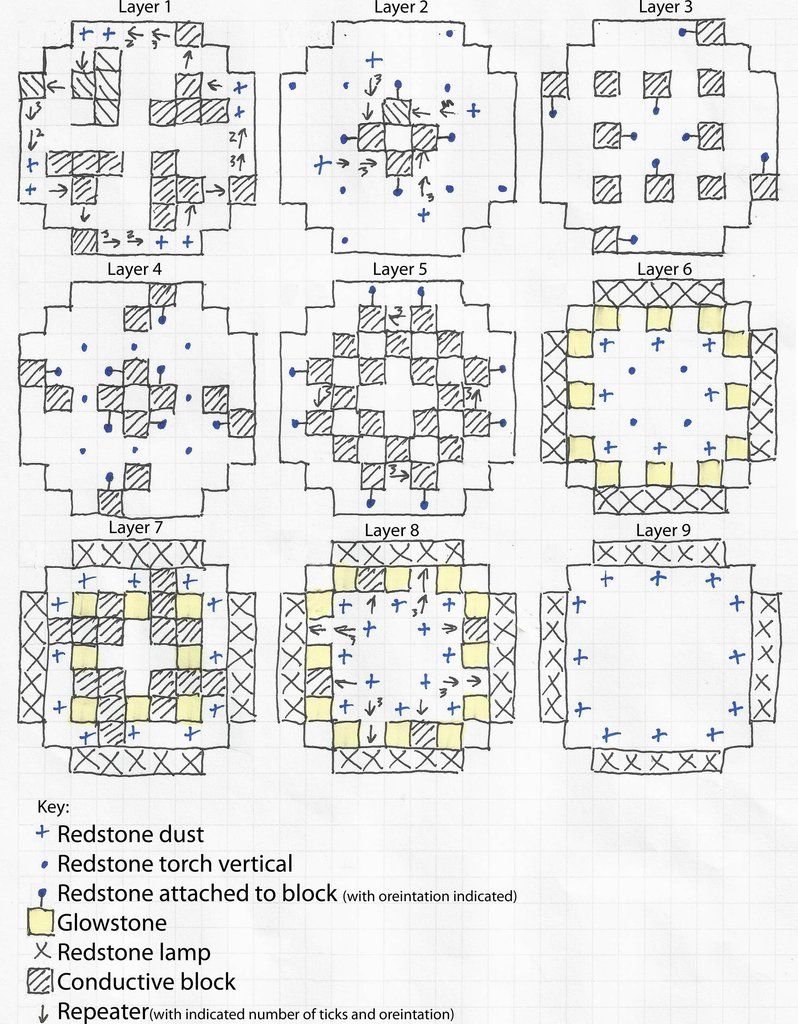
When you stare at a blank Minecraft canvas, do you ever feel that familiar mix of boundless possibility and utter overwhelm? You envision grand castles, intricate redstone contraptions, or sprawling cities, but translating that vision block-by-block, often solo, can feel like an impossible task. This is precisely where Minecraft Build Schematics & Blueprints become your most powerful allies, transforming daunting projects into manageable, exhilarating creative adventures.
Think of schematics not just as files, but as keys unlocking a treasure trove of pre-designed builds, ready to be dropped into your world with precision and speed. They are the ultimate building hack, empowering you to bypass repetitive groundwork and jump straight into customization, learning, and grander ambitions.
At a Glance: Your Schematic Superpowers
- Instant Builds: Import complex structures in seconds, from cozy cottages to colossal castles.
- Creative Inspiration: Browse thousands of community-shared designs to spark new ideas or learn advanced techniques.
- Time-Saving: Skip manual construction for repetitive or intricate elements, freeing you for creative flourishes.
- Learning Tool: Deconstruct expert builds to understand architectural principles, redstone logic, or terraforming tricks.
- Seamless Integration: Use tools like WorldEdit to paste builds directly into your single-player world or server.
- Share & Collaborate: Easily share your own creations or integrate others' work into collaborative projects.
What Exactly Are Minecraft Build Schematics? Your Digital Blueprints
At its heart, a Minecraft build schematic is a digital blueprint—a snapshot of a specific block arrangement saved as a file. Instead of individual blocks, this file captures a three-dimensional selection of blocks, their types, and their precise coordinates relative to a designated origin point. It's essentially a copy-paste function for entire structures, stored offline and ready to be deployed.
While the term "blueprint" perfectly captures their planning utility, "schematic" is the more common technical term in the Minecraft community, referring to the file format itself. These files allow you to:
- Download: Grab pre-built structures created by other players.
- Upload: Share your own masterpieces with the world.
- Paste: Integrate these structures into any compatible Minecraft world.
This system revolutionizes how builders approach large-scale projects, enabling an unprecedented level of efficiency and cross-pollination of ideas across the global Minecraft community.
Why Savvy Builders Swear By Schematics: The Core Benefits
The appeal of schematics isn't just about saving time; it's about expanding your creative horizons and tackling projects that would otherwise be out of reach.
1. Unprecedented Efficiency and Speed
Imagine wanting to build a grand cathedral. Manually placing every pillar, arch, and stained-glass window could take hundreds of hours. With a schematic, you can place the entire structure, perfectly aligned, in mere seconds. This speed allows you to:
- Rapidly Prototype: Test different layouts for a city or a base without committing hours to each iteration.
- Automate Repetitive Tasks: Need 50 identical trees for a forest? Or a row of complex streetlights? Schematics make it trivial.
- Accelerate Server Development: Server owners can quickly populate worlds with hubs, minigame arenas, or decorative elements, significantly cutting development time.
2. A Wellspring of Creative Inspiration & Learning
Schematic databases are essentially vast galleries of human ingenuity. Browsing through thousands of creations—from new creative building techniques to massive fantasy builds—offers endless inspiration. But it's more than just looking:
- Reverse Engineering: Download a schematic of a build you admire, then paste it into a creative world. You can then literally "deconstruct" it, block by block, to understand its construction techniques, material palettes, and redstone mechanisms. This is an unparalleled way to learn from master builders.
- Adapting and Customizing: Find a schematic you like, but it doesn't quite fit your world's aesthetic? Import it and then modify it to your heart's content, using the original as a solid foundation rather than starting from scratch.
- Exploring Diverse Styles: Step outside your comfort zone by experimenting with building styles you might not naturally gravitate towards.
3. Streamlined Collaboration and Sharing
Working on a multiplayer server or a collaborative project? Schematics are invaluable.
- Share Your Builds: Easily package your own incredible creations into a file that friends or other server members can import instantly.
- Integrate Community Creations: Server admins frequently use schematics from the community to add pre-built structures like spawn points, shops, or minigame maps, enhancing the player experience rapidly. This collaborative spirit is a cornerstone of the Minecraft community, fostering a continuous exchange of ideas and impressive builds.
The Schematic Ecosystem: Where to Find & How to Use Them
Ready to dive in? The schematic world is vast, primarily powered by community contributions and powerful in-game tools.
Finding Your Perfect Schematic
Several prominent websites act as central hubs for Minecraft schematics. These sites typically offer robust search functions, categories, and user reviews, allowing you to find exactly what you're looking for.
- Major Databases: Websites like Minecraft-Schematics.com, which hosts nearly 20,000 creations, and MCBuild.org are prime examples. These platforms allow you to browse, search by keywords (e.g., "castle," "farm," "modern house"), filter by game version, and download files directly. Many even offer 3D previews.
- Community Forums & Subreddits: Dedicated Minecraft communities on platforms like Reddit often have threads or sections where users share their schematic files, sometimes with detailed build logs or showcase videos.
- Content Creator Patreons/Websites: Many popular Minecraft YouTubers and builders offer their custom schematics as downloads, sometimes exclusively for patrons or followers.
When you're ready to explore a huge collection of possibilities, remember to Visit the Grabcraft hub for an expansive selection of build ideas and schematics.
The Essential Tool: WorldEdit
While schematics are the "blueprints," WorldEdit is the "construction crew" that brings them to life in your world. WorldEdit is a powerful in-game editing tool (available as a mod for single-player or a plugin for multiplayer servers) that allows you to perform large-scale block manipulations with simple commands. It's the standard for importing and exporting schematics.
Key WorldEdit Features for Schematics:
//schem load <filename>: Loads a schematic from your schematics folder into your clipboard.//paste: Pastes the loaded schematic into your world relative to your current position.//schem save <filename>: Saves your current WorldEdit selection as a schematic file.//rotate,//flip: Manipulate the loaded schematic before pasting it.
Without WorldEdit (or similar tools like MCEdit or Litematica), schematics are just files; with it, they become functional, manipulable structures.
Demystifying Schematic Files: .schem vs. .schematic
You might encounter two primary file extensions for schematics: .schematic and .schem. While they serve the same purpose, they represent different eras and standards:
.schematic(Legacy): This is the older, original schematic format, primarily used by tools like MCEdit. It's still widely supported by WorldEdit for compatibility..schem(Modern): This is the newer, more efficient format introduced with advancements in Minecraft versions and WorldEdit. It's generally preferred for newer builds and offers better compatibility across modern Minecraft versions.
Key Takeaway: Modern versions of WorldEdit can typically handle both, but.schemis the format of choice for new creations and optimal performance. If you download an older.schematicfile, WorldEdit will usually convert it automatically upon loading.
From Download to Digging: Installing & Implementing Schematics
Bringing a schematic into your world is a straightforward process, primarily involving WorldEdit. Here’s a general step-by-step guide:
Prerequisites:
- Minecraft Java Edition: Schematics are predominantly for Java Edition.
- WorldEdit: Install WorldEdit as a client-side mod (for single-player, via Fabric or Forge) or as a server-side plugin (for multiplayer servers, via Spigot/PaperMC/Sponge). Ensure the WorldEdit version matches your Minecraft version.
- Basic WorldEdit Knowledge: Familiarity with selecting regions (e.g., using a wooden axe to set
//pos1and//pos2) is helpful.
Step-by-Step Guide to Importing a Schematic:
- Download the Schematic File: Get your desired
.schemor.schematicfile from a reputable source. - Locate Your WorldEdit Schematics Folder:
- Single-player (Fabric/Forge mod): Navigate to your
.minecraftfolder (oftenC:\Users\[Your Username]\AppData\Roaming\.minecrafton Windows, or~/Library/Application Support/minecrafton macOS). Inside, you'll find aschematicsfolder. If it doesn't exist, create it. - Multiplayer Server (Plugin): Go to your server's main directory. There should be a
pluginsfolder, and inside that, aWorldEditfolder. Yourschematicsfolder will be within theWorldEditfolder.
- Place the Schematic: Move the downloaded
.schemor.schematicfile into theschematicsfolder. - Load the Schematic In-Game:
- Open Minecraft and load into the world where you want to place the schematic (ensure WorldEdit is active).
- Type
//schem load <filename>(replace<filename>with the actual name of your schematic file, without the.schemor.schematicextension). - Example: If your file is
grand_castle.schem, you'd type//schem load grand_castle. - You'll get a confirmation message if it loads successfully. The schematic is now in your clipboard.
- Position and Paste:
- Fly or walk to the exact spot where you want the bottom-north-west corner (the origin point) of your schematic to be. Your current facing direction and position will determine how the schematic is placed.
- (Optional but Recommended) Preview: Type
//schem paste -sto see a "ghost" preview of the schematic's outline. This helps you ensure correct placement before committing. Use//undoif you need to reposition. - (Optional) Rotate/Flip: Use
//rotate <degrees>(e.g.,//rotate 90) or//flipto adjust the orientation of the schematic in your clipboard before pasting. - Paste: Once you're happy with the position, type
//paste. - Important: This command will replace any existing blocks in the schematic's area. Be absolutely sure of your placement!
- The schematic will now generate in your world. For very large schematics, this might take a few moments and could cause a brief lag spike.
- Clean Up: Once pasted, you can
//undoif you made a mistake or simply enjoy your new build!
Common Pitfalls & Troubleshooting:
- Wrong WorldEdit Version: Always ensure your WorldEdit matches your Minecraft game version.
- Incorrect Folder: Double-check that you've placed the schematic file in the correct WorldEdit schematics folder.
- Lag/Crash on Paste: Extremely large schematics can strain your system or server. Try pasting in sections if possible, or ensure you have sufficient RAM allocated to Minecraft. Consider optimizing your Minecraft performance before attempting huge imports.
- Blocks Missing/Incorrect: This can happen due to game version differences (e.g., a schematic from 1.12 with block IDs not present in 1.18). WorldEdit tries to convert, but some blocks might become air or substitute blocks.
- Schematic Pasting Upside Down/Wrong Way: Remember to use
//rotateor//flipbefore you paste, and understand that your//pastecommand aligns the schematic's origin to your current position.
Crafting Your Own Masterpieces: Generating Schematics
Beyond importing, you can also create schematics from your own builds. This is how the vast online databases grow!
Steps to Save Your Build as a Schematic:
- Build Your Creation: Construct your masterpiece in Minecraft.
- Select the Region: Using WorldEdit, select the entire 3D area of your build. Use a wooden axe (default tool) to set
//pos1and//pos2for opposite corners of your structure. Ensure you capture all desired blocks, including any underground foundations or hidden redstone. - Define the Origin: Stand at the exact block where you want the "bottom-north-west" paste point of your schematic to be. This is crucial for easy repositioning later.
- Save the Schematic: Type
//schem save <filename>.
- Example:
//schem save my_epic_tower. - WorldEdit will save the selected region as a
.schemfile (or.schematicif you specify//schem save <filename> .schematic) in yourschematicsfolder.
- Share Your Creation: You can now share this file with others, upload it to schematic websites, or use it yourself in other worlds!
Beyond the Basics: Advanced Uses & Creative Strategies
Schematics are more than just copy-paste tools; they're platforms for advanced creativity.
1. Modular Building & Assembly
Break down complex builds into smaller, reusable schematic modules. Design individual house types, street sections, park elements, or even advanced redstone automation circuits as schematics. Then, assemble them like LEGO bricks to rapidly construct entire cities, villages, or sprawling industrial complexes. This approach significantly speeds up large-scale projects and ensures consistency.
2. Learning Advanced Techniques through Dissection
Download incredibly intricate builds—think massive pixel art, detailed organic sculptures, or highly optimized farms. Paste them into a creative world, then use WorldEdit's //cut or //set air commands to carefully peel back layers. Observe block placements, understand structural supports, and decipher complex redstone wiring. It's like having a master builder's brain on display.
3. Terraforming & Landscape Design
Schematics aren't just for structures. You can create schematics of custom trees, rock formations, caves, or even entire landscape chunks. This allows for incredibly rapid and consistent terraforming, enabling you to design stunning natural environments far beyond what random generation offers. Imagine importing a schematic for a unique mountain range or a beautiful forest biome.
4. Integrating into Server Projects & Mini-Games
For server administrators, schematics are indispensable. They allow for the rapid deployment of:
- Spawn Hubs: Create a stunning, unique central area in minutes.
- Mini-Game Arenas: Quickly set up maps for PvP, parkour, or other custom games.
- Quest Locations: Drop in pre-designed dungeons or puzzle rooms.
- Economy Structures: Place shops, banks, or markets efficiently.
This greatly enhances the ability to develop engaging experiences for players on custom Minecraft servers.
5. Version Control for Your Builds
Treat your schematics like save files for your most important creations. If you're experimenting with modifications to a build, save the original as a schematic first. This way, you can always revert to the pristine version if your changes don't pan out. It's your personal building backup system.
FAQs: Your Quick Guide to Schematic Success
Q: Are Minecraft schematics compatible across all Minecraft versions?
A: Generally, newer WorldEdit versions try to convert blocks from older schematics. However, direct compatibility can be tricky. Schematics made in a very old version (e.g., 1.7) might have block IDs that no longer exist or have changed significantly in a new version (e.g., 1.20), leading to missing or incorrect blocks upon pasting. For best results, use schematics created in a version close to or identical to your current game version.
Q: Can I use schematics in Minecraft Bedrock Edition?
A: No, the .schem and .schematic formats are specific to Minecraft Java Edition and its modding ecosystem (primarily WorldEdit). Bedrock Edition has different tools and file formats for importing structures (like .mcstructure files), but they are not directly compatible with Java schematics.
Q: Do schematics include chests with items, spawners, or command blocks?
A: Yes, schematics capture all block data, including the contents of chests, the mob type in spawners, and the commands within command blocks, provided WorldEdit supports those blocks in the game version you are using. This is incredibly powerful for deploying functional structures.
Q: My schematic is huge and crashes my game when I paste it. What can I do?
A: Large schematics (tens of thousands or millions of blocks) can be memory-intensive.
- Allocate More RAM: Increase the RAM allocated to your Minecraft client or server.
- Paste in Chunks: If possible, ask the schematic creator if they have broken the build into smaller, manageable sections, or try to cut and paste smaller portions yourself if you're comfortable with WorldEdit.
- Use Asynchronous Pasting: Some server plugins (like AsyncWorldEdit) offer "async paste" options that process large pastes in the background, reducing lag spikes.
- Check Performance: Ensure your computer or server has sufficient processing power and storage speed.
Q: How can I change the materials of a schematic after I've pasted it?
A: WorldEdit's //replace command is your friend! Select the pasted schematic region again, then use //replace <old_block> <new_block> (e.g., //replace cobblestone stone_bricks) to swap out materials. You can also use //set with a mask if you only want to change specific blocks within the selection.
Unlocking Your Full Creative Potential
Minecraft build schematics are more than just a convenience; they represent a fundamental shift in how we approach creative building in the game. They democratize complex architecture, foster rapid iteration, and provide an invaluable learning resource that can elevate any player's building skills.
Whether you're struggling to finish that ambitious mega-build, seeking inspiration for your next project, or managing a bustling multiplayer server, understanding and utilizing schematics will become an indispensable part of your toolkit. Don't let the sheer scale of your dreams intimidate you. Embrace the power of the digital blueprint, experiment with community creations, and empower yourself to build worlds beyond your wildest imagination. Your next epic creation is just a schematic away!